Documentation Index
Fetch the complete documentation index at: https://cometchat-22654f5b-docs-flutter-sdk-mark-as-unread.mintlify.app/llms.txt
Use this file to discover all available pages before exploring further.
Enable intelligent conversational AI capabilities in your iOS app using CometChat UIKit v5 with AI Agent integration:
- AI Assistant Chat History
- Chat History Management
- Contextual Responses
- Agent Detection
- Seamless Handoffs
Transform your chat experience with AI-powered assistance that provides intelligent responses and offers seamless integration with your existing chat infrastructure.
Overview
Users can interact with AI agents through a dedicated chat interface that:
- Provides intelligent responses based on conversation context.
- Maintains chat history for continuity.
- Seamlessly integrates with your existing user chat system.
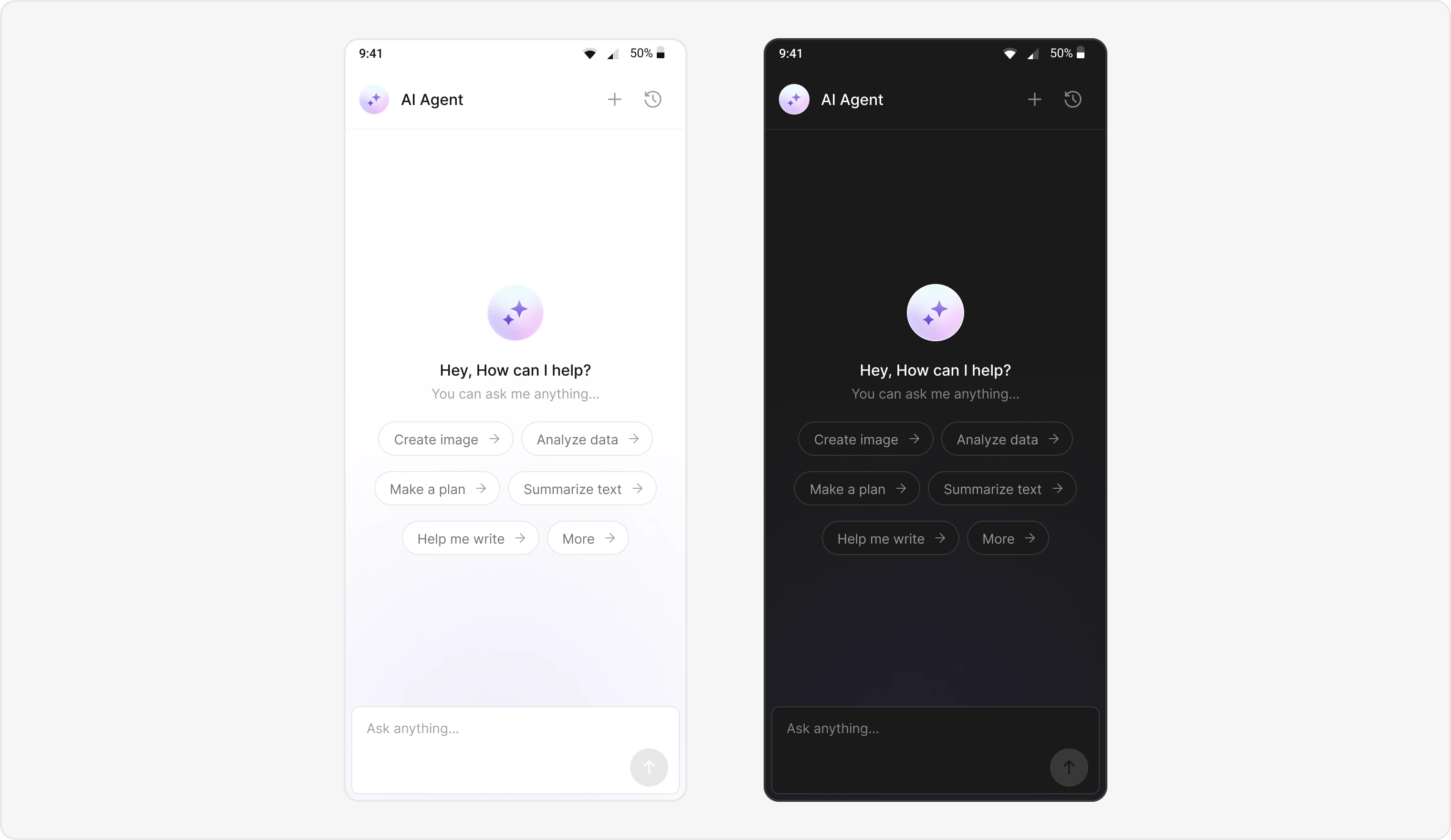
The AI Agent chat interface provides a familiar messaging experience enhanced with AI capabilities, accessible through your main chat flow or as a standalone feature.
Prerequisites
- CometChat UIKit for iOS installed via CocoaPods or Swift Package Manager
- CometChat initialized with
App ID, Region, and Auth Key
- Message chat enabled in your CometChat app
- Navigation set up between message and user/group screens
- Internet permissions
Components
| Component/Class | Role |
|---|
CometChatMessageHeader | Manages message interactions and state |
CometChatMessageList | Displays a list of messages |
CometChatMessageComposer | Composes and sends new messages |
CometChatAIAssistantChatHistory | Displays previous AI conversation history |
Integration Steps
Step 1 - Screen Setup
Create a screen for AI Assistant chat using CometChatMessageHeader, CometChatMessageList, and CometChatMessageComposer.
import UIKit
import CometChatUIKit
class AIAssistantChatViewController: UIViewController {
var user: User?
var group: Group?
var parentMessage: BaseMessage?
var isHistory: Bool = false
override func viewDidLoad() {
super.viewDidLoad()
setupUI()
}
func setupUI() {
let messageHeader = CometChatMessageHeader()
messageHeader.user = user
messageHeader.group = group
messageHeader.onBack = { [weak self] in
self?.navigationController?.popViewController(animated: true)
}
messageHeader.chatHistoryButtonClick = { [weak self] in
self?.openChatHistory()
}
view.addSubview(messageHeader)
let messageList = CometChatMessageList()
messageList.user = user
messageList.group = group
messageList.hideThreadView = true
view.addSubview(messageList)
let composer = CometChatMessageComposer()
composer.user = user
composer.group = group
view.addSubview(composer)
}
func openChatHistory() {
let chatHistoryVC = CometChatAIAssistantChatHistory()
chatHistoryVC.user = user
chatHistoryVC.group = group
chatHistoryVC.onNewChatButtonClicked = {
self.startNewChat()
}
chatHistoryVC.onMessageClicked = { [weak self] message in
guard let self = self else { return }
self.parentMessage = message
self.isHistory = true
self.navigationController?.pushViewController(
AIAssistantChatViewController(),
animated: true
)
}
chatHistoryVC.onClose = {
self.navigationController?.popViewController(animated: true)
}
navigationController?.pushViewController(chatHistoryVC, animated: true)
}
func startNewChat() {
navigationController?.pushViewController(
AIAssistantChatViewController(),
animated: true
)
}
}
Step 2 - Chat History Screen
Create a screen for AI Assistant chat history using CometChatAIAssistantChatHistory.
Features Implemented::
- Browse their previous AI chat sessions.
- Resume a previous conversation (onMessageClicked).
- Start a new chat session (onNewChatButtonClicked).
- Close the chat history view (onClose).
Step 3 - Custom Styles
Define custom styles for AI chat bubbles and the composer using CometChatAiAssistantBubbleStyle.
import UIKit
import CometChatUIKit
let aiBubbleStyle = AiAssistantBubbleStyle()
aiBubbleStyle.backgroundColor = .clear
aiBubbleStyle.border = Border(width: 1, color: .systemBlue)
aiBubbleStyle.textColor = UIColor(named: "TextPrimary")
aiBubbleStyle.textStyle = UIFont(name: "TimesNewRoman", size: 14)
CometChatAiAssistantBubble.style = aiBubbleStyle
Implementation Flow Summary
| Step | Action |
|---|
| 1 | User selects AI agent from chat list |
| 2 | AIAssistantChatViewController launches |
| 3 | Parse User data and detect agent chat (Role must be @agentic) |
| 4 | Initialize UI with AI-specific styling |
| 5 | Configure chat history and navigation |
| 6 | Launch chat with AI agent |
Customization Options
- Custom AI Assistant Empty Chat View: Customize using
emptyStateView.
- Streaming Speed: Adjust AI response streaming speed with
streamingSpeed.
- AI Assistant Suggested Messages: Set quick prompts using
suggestedMessages.
- AI Assistant Tools: Set AI agent tools using
setAiAssistantTools callback.
Feature Matrix
| Feature | Implementation | UI Component |
|---|
| AI Chat | AIAssistantChatViewController | Full chat screen |
| Chat History | CometChatAIAssistantChatHistory | Chat history screen |